
How to Create a YouTube Thumbnail That Gets Clicks — Using AI
Your thumbnail is the first thing a viewer sees. It decides in a fraction of a second whether they click your video or scroll past it. For faceless channels, a strong thumbnail is even more important — because you have no face to draw attention. Here is how to generate one that works.
What makes a thumbnail work on YouTube?
YouTube's click-through rate (CTR) measures how often people click your video when they see it in search results or recommendations. The average CTR is 2–10%. A thumbnail that increases CTR from 3% to 6% effectively doubles your channel's growth rate — without changing anything else.
Works
- ✓ High contrast — visible at small sizes
- ✓ One clear focal point
- ✓ Text that completes the title (not repeats it)
- ✓ Emotional expression or dramatic visual
- ✓ Consistent style across all your videos
Does not work
- ✗ Too many elements
- ✗ Text that duplicates the video title
- ✗ Low contrast — blends into the page
- ✗ Generic stock-photo look
- ✗ No visual connection to the video content
How the AI cover generator works
The Cover Generator reads your video's metadata — the title, description, and hook text — and uses that information to generate a thumbnail image. You pick the visual style, mood, and layout options. The AI handles the composition.
This is why generating metadata before generating a cover matters. The better your title and hook text, the better the cover image the AI can produce from them.
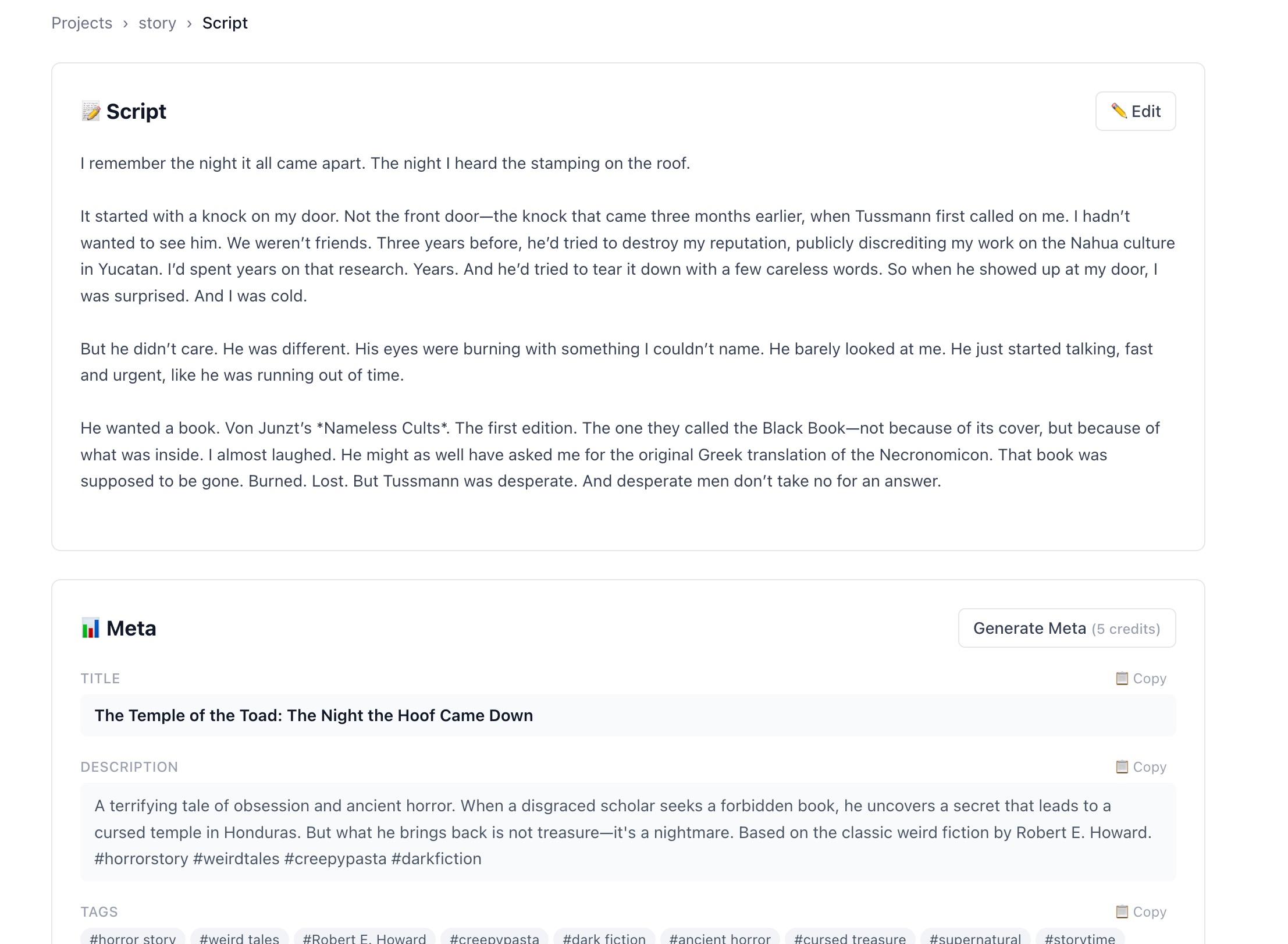
Generate metadata first — the cover generator reads your title and hook text to build the thumbnail.
Generate your script metadata first
Go to the Meta section and click Generate Meta. The AI produces a YouTube title, description, tags, and a hook line — the most attention-grabbing sentence from your script. This hook text is used as the overlay text on the thumbnail.
Open the Covers section
The Covers section appears after the TTS and B-Roll sections. It requires that metadata has been generated — the cover generator reads the title and hook text to build its image prompt.
Choose your style options
Select a rendering style (cinematic, illustrated, etc.), a mood (dramatic, calm, mysterious), and whether to show text overlaid on the image. You can generate up to 3 cover options per script and choose the best one.
Download and use as your YouTube thumbnail
Once the cover is generated, download the image and upload it to YouTube Studio as your custom thumbnail. The image is optimized for the correct YouTube thumbnail dimensions.
Using B-Roll images as thumbnails
Your B-Roll images are also viable thumbnail candidates — especially if you generated them in a cinematic or photorealistic style. Look through your image library after generating all segments and identify the most visually striking one.
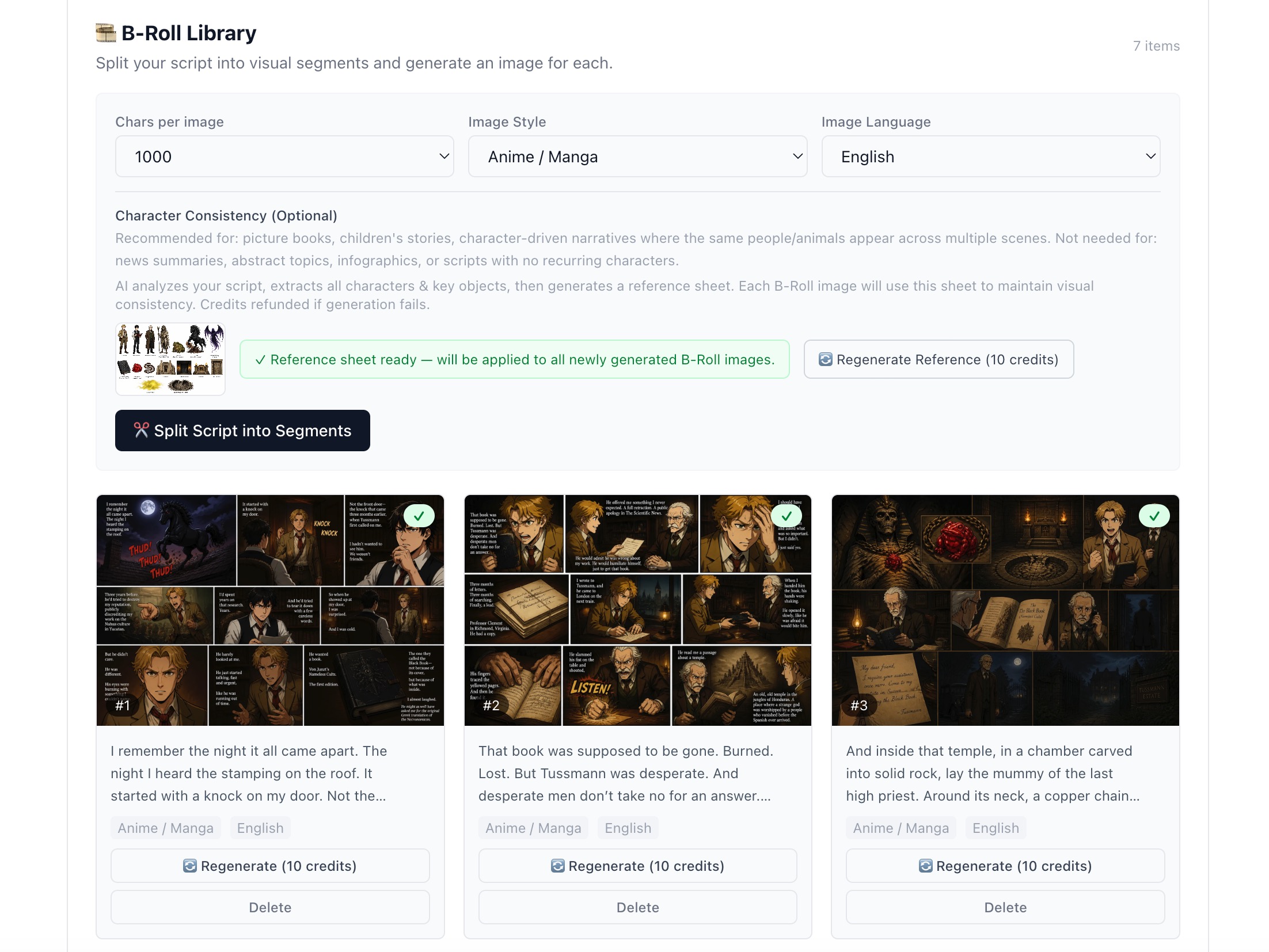
Any of the B-Roll images can serve as a thumbnail — pick the most dramatic frame.
If you use a B-Roll image as a thumbnail, add a text overlay in Canva or a similar free tool before uploading. The title or hook text overlaid on the image improves CTR significantly — even just 3–5 words in large bold font can double clicks.
Thumbnail A/B testing on YouTube
YouTube Studio has a built-in A/B test feature for thumbnails (called "Test and Compare"). Generate 2–3 cover options and test which one gets higher CTR. The system automatically shows different thumbnails to different viewers and tells you which performs better.
Most creators never test thumbnails. The ones who do consistently outgrow the ones who do not — because they discover what actually works for their specific audience rather than guessing.
Generate your video cover — free
Script, voiceover, B-Roll, cover image, and export — all in one place. 50 free credits at signup.
Start for Free