How to Make Science Videos for Your Students Without Editing Software
A teacher’s guide to short animated science videos: choosing the question, checking the outline and the script, picking the format for the classroom or for phones, and getting the facts right.
Some ideas are hard to teach with a still picture. Light bending inside a raindrop, blood moving through four chambers of the heart, ice forming an open crystal: the textbook shows one frozen moment of something that only makes sense when it moves. A good short video fixes that, but finding one that matches your lesson, your students’ level and your time slot is its own job, and making one yourself used to mean an evening in editing software.
This guide shows how to make a short animated science video for a class by describing it in a chat. You say what the video should explain and for whom, check the plan and the script, and an AI agent builds the animation, the narration and the subtitles. You need no editing skills and no drawing skills.
Why short animated explainers work in a lesson
A one-minute explainer is not a replacement for teaching. It is a tool for the moments when students need to see a process rather than hear about it. The ones that help most share a few traits:
- They answer one question. “Why is the sky blue?” is a video. “Light” is a unit.
- Students hear and see the same idea at the same moment. When the narration says “the blue light scatters”, the blue light scatters on screen. Words and picture support each other instead of competing.
- They show change. Arrows that move, a curve that draws itself, a quantity that counts up: these are what a still diagram cannot do.
- They are short enough to watch twice. Under two minutes, students can rewatch it at home, and you can pause it in class to ask “what happens next?”.
Here are four science videos made this way. Open any of them to watch it play.
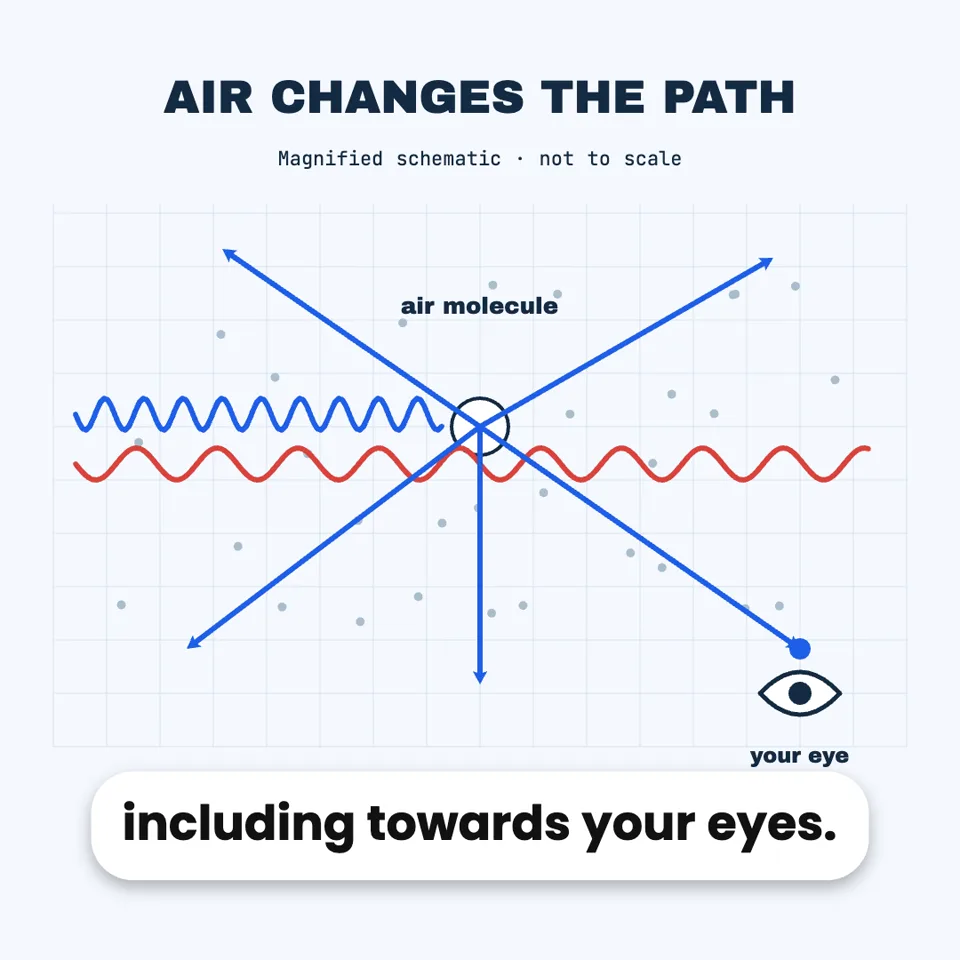
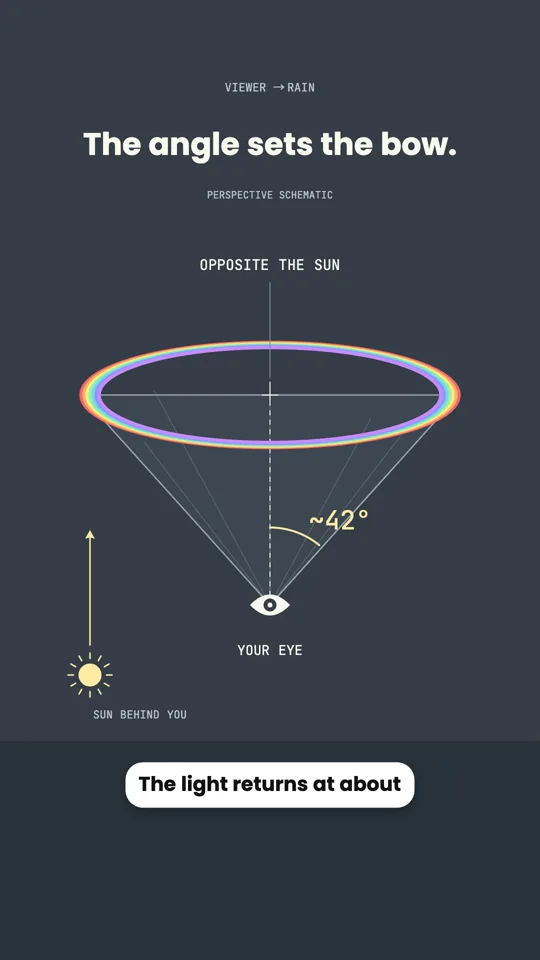
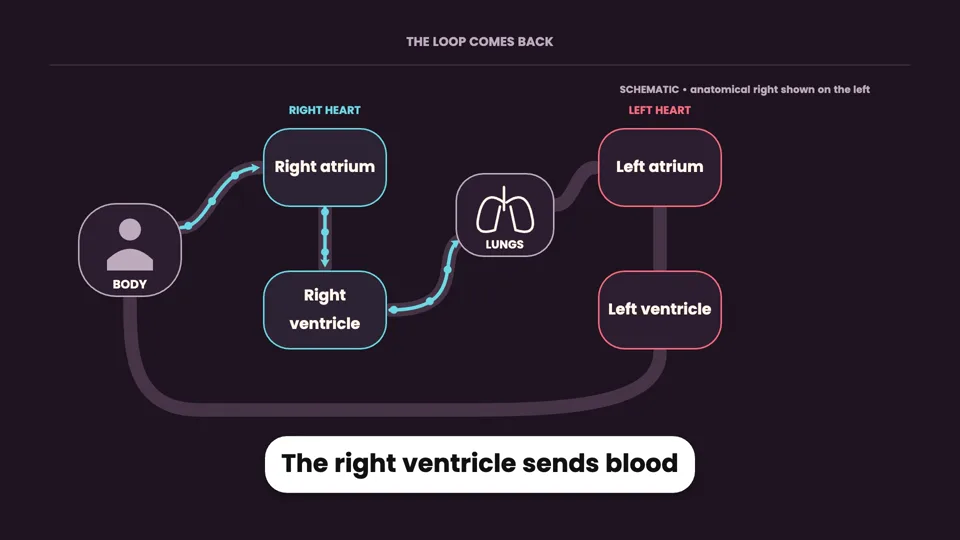
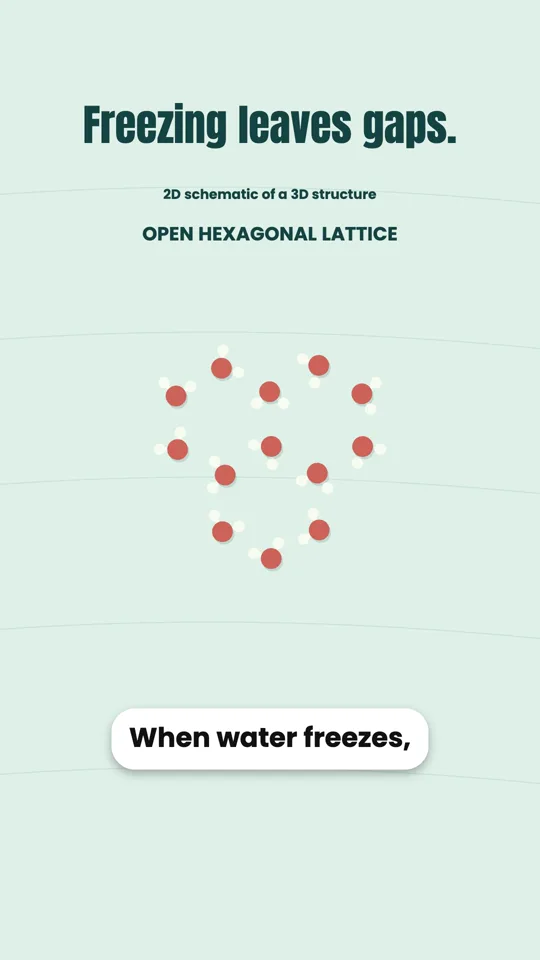
Step by step: a science video for your class
- Start from a question your students actually ask. The best topics are the ones that come up in class: “Why does ice float?”, “Where does a tree’s weight come from?”, “Why do we see the same side of the Moon?”. Say who the video is for, because the same question is explained differently to a ten-year-old and to a sixteen-year-old. Make a one-minute video for 13-year-olds explaining why ice floats on water. Mention hydrogen bonds but keep it simple, and end with why that matters for fish in winter.
- Answer the agent’s questions. Before it makes anything, the agent replies with a short form: the format and length, the voice, whether to use AI pictures, a few looks to choose from, and an outline of the video. Each question has its recommendation marked. The outline is the part to read carefully: compare it with your lesson plan and write your changes under “Other”.
- Read the narration as you would read a worksheet. Next you see the full script, split into the parts the video will follow. This is where you fix vocabulary that is too advanced, a step that is missing, or an analogy you do not like. Nothing is recorded until you approve it.
- Watch the video in the preview. The agent records the narration and builds the animation scene by scene. The preview plays it with subtitles as soon as it is ready.
- Fix anything by saying what is wrong. “The arrow in the second scene should point down.” “Slow down the part about density.” If a frame looks wrong, pause on it and use “Ask about this frame”: the frame is sent with your message, so the agent sees exactly what you see.
- Download the MP4. Export it from the preview in Chrome or Edge. The file plays offline, so a slow school network is not a problem, and you can upload it to your learning platform like any other video.
Choosing the format for how you will use it
| Where students will watch | Format to pick | Why |
|---|---|---|
| On the classroom screen or projector | Landscape 16:9 | Fills the screen; diagrams and labels have room to sit side by side. |
| On phones, as homework or revision | Portrait 9:16 | Fills a phone held upright; one element at a time, stacked. |
| In a slide deck or a class post | Square 1:1 | Sits neatly inside a slide or a post without black bars. |
Length is your choice too, from a few seconds up to three minutes. For a single concept, 45 to 90 seconds is usually enough; if you find yourself wanting five minutes, it is probably two or three videos.
Requests you can copy
Change the topic and the age, and these work as they are:
Getting the science right
You are the subject expert in the room, and the review steps are where that counts. A few habits that make it easy:
- Give it your source. The agent cannot search the web, but it reads what you give it: paste the relevant paragraph from your textbook or notes, or include a link to a public page and it will read that page before planning. It then builds from that material rather than from memory.
- Give it the exact numbers you teach. If your syllabus says the heart beats about 70 times a minute at rest, put that in the request; the agent uses your figures as they are, and rounds or qualifies the ones it is unsure of rather than inventing precise values.
- Check the narration, not only the pictures. Every claim in the video is in the script you approve, so reading it once is the whole fact-check.
- Watch it once before class with the sound on, the way students will.
Making a series for a whole unit
One conversation makes one video, so a unit of five topics is five conversations. To make them feel like a set, start each one with the same instructions: the voice by name, the look, the colours and the length. For example: “Same style as before: dark blue background, yellow highlights, the voice Sonia, about 60 seconds, landscape.” Keep that line in a note and paste it at the start of each new video.
The narration can be in English, Simplified or Traditional Chinese, Japanese, Korean, French, German, Spanish or Italian. For a language class or students who are still learning English, you can ask for a version of a finished video in another language: the agent translates the narration and the text on screen and shows you the new script first. Download the first version before you ask, because the new version replaces it in that conversation.
A checklist before you show it
- Does the video open on the question or a surprising fact, rather than a long introduction?
- Is every term in the narration one your students know, or explained on screen when it first appears?
- Are the numbers the ones from your syllabus?
- Is the text big enough to read from the back of the room? If not, ask for larger text.
- Do you want subtitles burned into the video? They follow the subtitle switch in the preview bar when you export.
Questions teachers ask
Do my students need an account to watch it?
No. You download an ordinary MP4 file. Share it however you share any video: your learning platform, a shared drive, or the classroom screen.
Can I change the video next term?
Yes. Open the same conversation and ask for the change, such as a new example, a different length, or an updated figure. The agent edits the existing video rather than starting again.
Can I use my own diagrams or photos?
Yes. Attach an image to your message or upload it, and say which scene it belongs in. The agent looks at it before placing it.
Can I leave the voice out?
Yes. Choose “No voiceover” in the first form and the video is designed to be read, with each piece of text on screen long enough to read. That suits a video you plan to narrate yourself in class.