How to Make an Animated Explainer Video From One Sentence
A step-by-step walkthrough of making a narrated explainer video with an AI agent: the questions it asks, approving the script, adding pictures, fixing details by asking, and downloading the MP4.
An explainer video used to mean three jobs: writing a script, recording a voiceover, and spending an evening in an editor lining up text, pictures and sound. This guide shows a different way: you describe the video in one sentence, answer a few questions, and an AI agent builds the whole thing. Then you change what you do not like by asking.
Every step below comes from one real session: a 66-second video on how the dinosaurs went extinct, made from the single request “can you make a video to explain how the dinosaurs went extinct?”. You can watch that exact session replayed on our home page.
What makes a good explainer video
Before the steps, it helps to know what you are aiming for. The explainers people finish watching have three things in common:
- One idea per scene. A viewer can follow one claim at a time; a scene that tries to say three things says none of them.
- Words on screen that match the words being spoken, at the moment they are spoken. That is what makes a video feel edited rather than assembled.
- Exact facts. A wrong date or a made-up statistic is the comment that sinks a video.
This is why the agent builds an explainer as a designed motion graphic (every title, number and picture placed and timed to the narration) rather than generating it as one blurry AI clip. Generated footage cannot hold exact text or numbers; a designed scene can.
Step-by-step: from one sentence to a finished video
- Describe the video. Say what it is about. If you already know them, add the length, where it will be posted, and the tone. If you do not, leave them out. The agent will ask. Can you make a video to explain how the dinosaurs went extinct?
- Answer its questions. Before it makes anything, the agent replies with a short form: an outline of the video, and a few choices: the look, the format and length, the voice, and whether to use AI pictures. Its recommendation is marked on each. Tick what you want, write your own answer under “Other”, or press “You decide” to take its recommendations.
- Read the narration before it is recorded. Next you see the full narration, split into the parts the video will follow. Change a word, cut a line, or approve it. Nothing is recorded until you do, so a rewrite costs nothing.
- Watch it come together. The agent records each line of the narration, then writes the video scene by scene. The preview on the right plays it as soon as it is ready, with subtitles, sound effects and a quiet music bed.
- Change anything by asking. “Add some pictures.” “Make the first frame more engaging.” “The title is too small.” The agent edits its own work and the preview reloads.
- Download the MP4. When you are happy, export the video. It is rendered in your browser and saved as an MP4, ready for YouTube, TikTok, Reels or Shorts.
The questions, and how to answer them
The first form decides most of what the video will feel like, so it is worth a minute.
| Question | What it changes | A good default |
|---|---|---|
| Look | The palette, the type and the mood of every scene. | Whatever fits the topic: dark and cinematic for history and disasters, clean and light for how-tos. |
| Format and length | 16:9 widescreen, 9:16 vertical or 1:1 square, and roughly how long. | 16:9 for YouTube, 9:16 for Shorts, TikTok and Reels. |
| Voiceover | Which voice reads the script, or no voice, only text and music. | Pick from the few the agent suggests for your language and topic. |
| Pictures | Graphics drawn in code only, or AI images for some scenes. | Start without; add pictures later if a scene needs one. |
In the dinosaur session every recommendation was taken: Cinematic, 16:9 at about a minute, a warm male voice, and code-drawn graphics. The outline had seven parts: the hook, the impact, the firestorm, the impact winter, the collapse of the food chain, the volcanoes, and the survivors.
Adding pictures without turning it into a slideshow
The first version of the dinosaur video had no AI images at all: the asteroid, the Earth and the timeline were drawn in motion. Then came one more message: “Add some AI images to assist the video.”
Instead of generating pictures straight away, the agent came back with a plan: five possible images (the opening landscape, the impact, the firestorm, the dark sky and the survivors), each described, with four recommended. Nothing was drawn until a choice was made. This is how every paid step works: you see what will be made, and how many, before anything is generated.
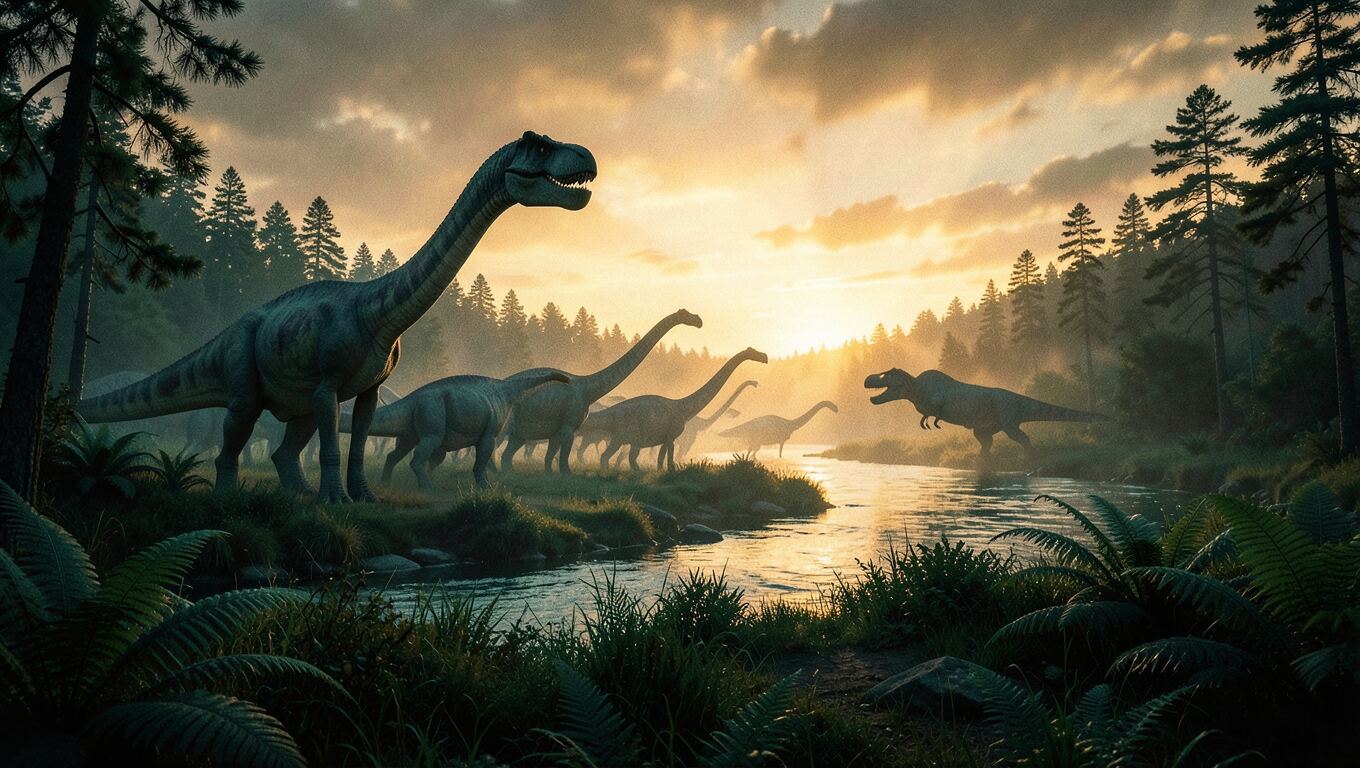
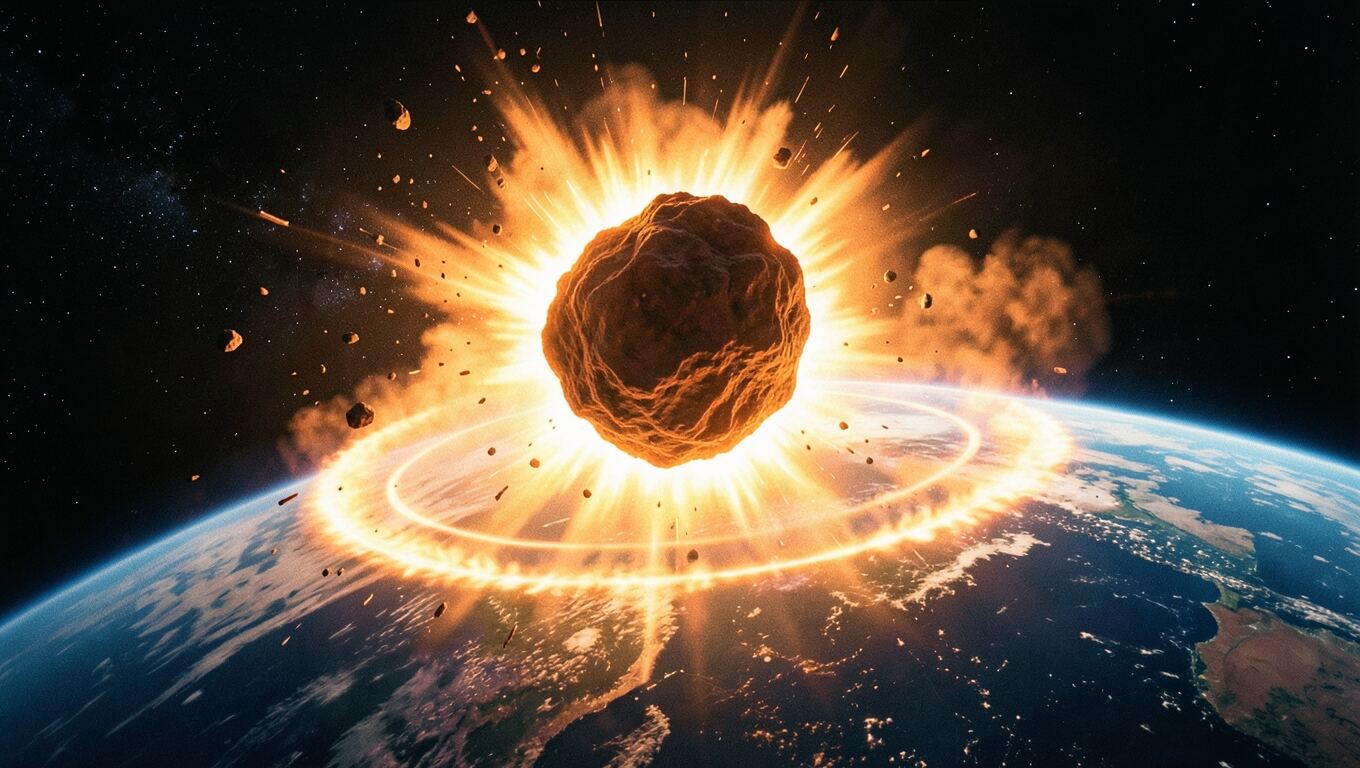
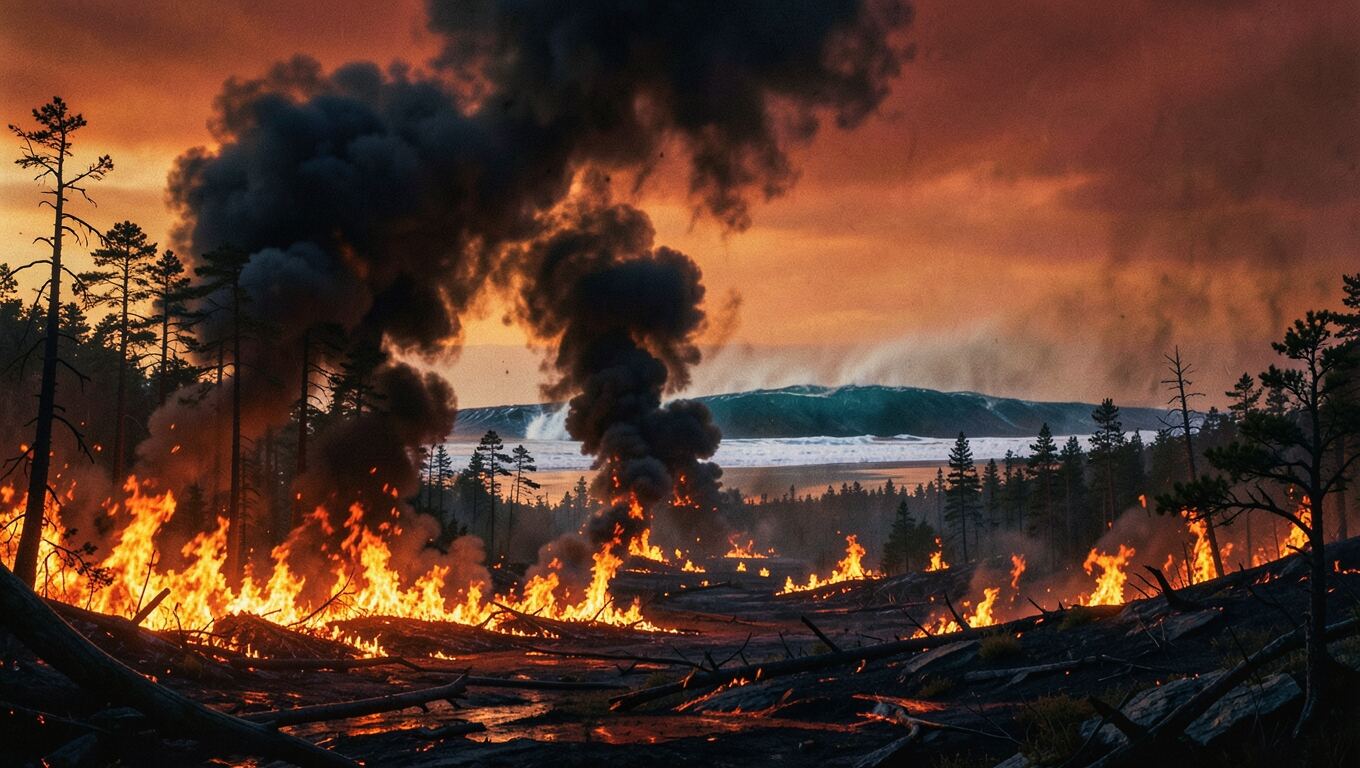

The four images were then designed into the scenes rather than dropped in as full-screen backdrops: the landscape slowly pushes in behind the opening, the asteroid slides into a frame on the word “slammed”, the firestorm rises as “wildfires” is spoken. The pictures support the narration; they do not replace the layout.
You can also use your own pictures. Attach a photo to your message or upload it, and ask the agent to place it in a scene.
Fixing details: just say what is wrong
There is no timeline to drag. Every fix is a sentence. A few that work well:
- “Make the first frame more engaging.” In the dinosaur video this put the dusk landscape and the title on screen from the very first frame, which also gives you a better thumbnail.
- “Scene 4 is too fast.” The agent lengthens the pause after that line.
- “Use the brand colours #0B3D2E and #F2C14E.” The palette is defined in one place, so the whole video changes together.
When the problem is visual and hard to describe, pause the preview on the frame and use “Ask about this frame”. The frame is attached to your message, so the agent sees exactly what you see.
The preview also checks the video by itself. It looks at every frame for text that is cut off by the edge, text overlapping other text, and text sitting in the subtitle area, and sends what it finds back to the agent with your next message. In the dinosaur session it caught a title that was briefly too wide for the frame; the agent shrank it before anyone had to point it out.
Downloading the video
Press export in the preview and the video is rendered frame by frame in your browser and saved as an MP4. Use Chrome or Edge for this step. Two things worth knowing:
- Subtitles follow the switch in the preview bar. Turn them off if your platform adds its own captions.
- You can save any single frame as a full-size PNG, the easiest way to make a matching thumbnail.
Ideas that work well as explainers
- “How did…” and “Why does…” questions from history and science.
- A process in steps: how a law is passed, how coffee is decaffeinated, how a loan is approved.
- Your own data: a year in numbers, survey results, a product’s growth. The charts are drawn from the figures you give.
- Comparisons: two options side by side, with the differences on screen as they are spoken.
If what you need is real-looking footage rather than designed scenes (a person in a room, a product on a table), that is the other kind of video the agent makes. See how to make a product video from one photo, or how to turn a story into an animated drama, in the posts below.