How to Add a Professional AI Voiceover to Your YouTube Video No Recording Equipment Needed
Recording your own voice takes a good microphone, a quiet room, multiple takes, and hours of audio editing. AI voiceovers skip all of that — and the quality is good enough that most viewers can't tell the difference.
Why AI voiceovers work for YouTube
A few years ago, AI voices sounded robotic and unnatural. That's no longer true. The latest AI voices — trained on hours of real human speech — sound natural, expressive, and clear.
For YouTube content like narrations, explainers, history videos, and educational content, a natural-sounding AI voice works just as well as a recorded human voice. Viewers care about whether the content is interesting — not whether the voice has a slight breath or hesitation.
🎙️ Recording your own voice
+Personal feel
+Unique identity
–Needs microphone + quiet room
–Multiple retakes
–Audio editing required
🤖 AI voiceover
+Done in 60 seconds
+No equipment
+Dozens of voice options
+Subtitles generated automatically
–Less personal
–May sound slightly synthetic in some voices
Step-by-step: generating a voiceover for your YouTube video
Have your script ready
Before generating a voiceover, you need a script. This is the text that will be read aloud. You can write it yourself, or use the AI script generator to create one from a topic. Either way, the script should read naturally when spoken — short sentences work better than long academic ones.
Open the narration panel
On the project page, the shot list header has a "Generate Narration" button. It opens the voice picker, where the voices are grouped by language.
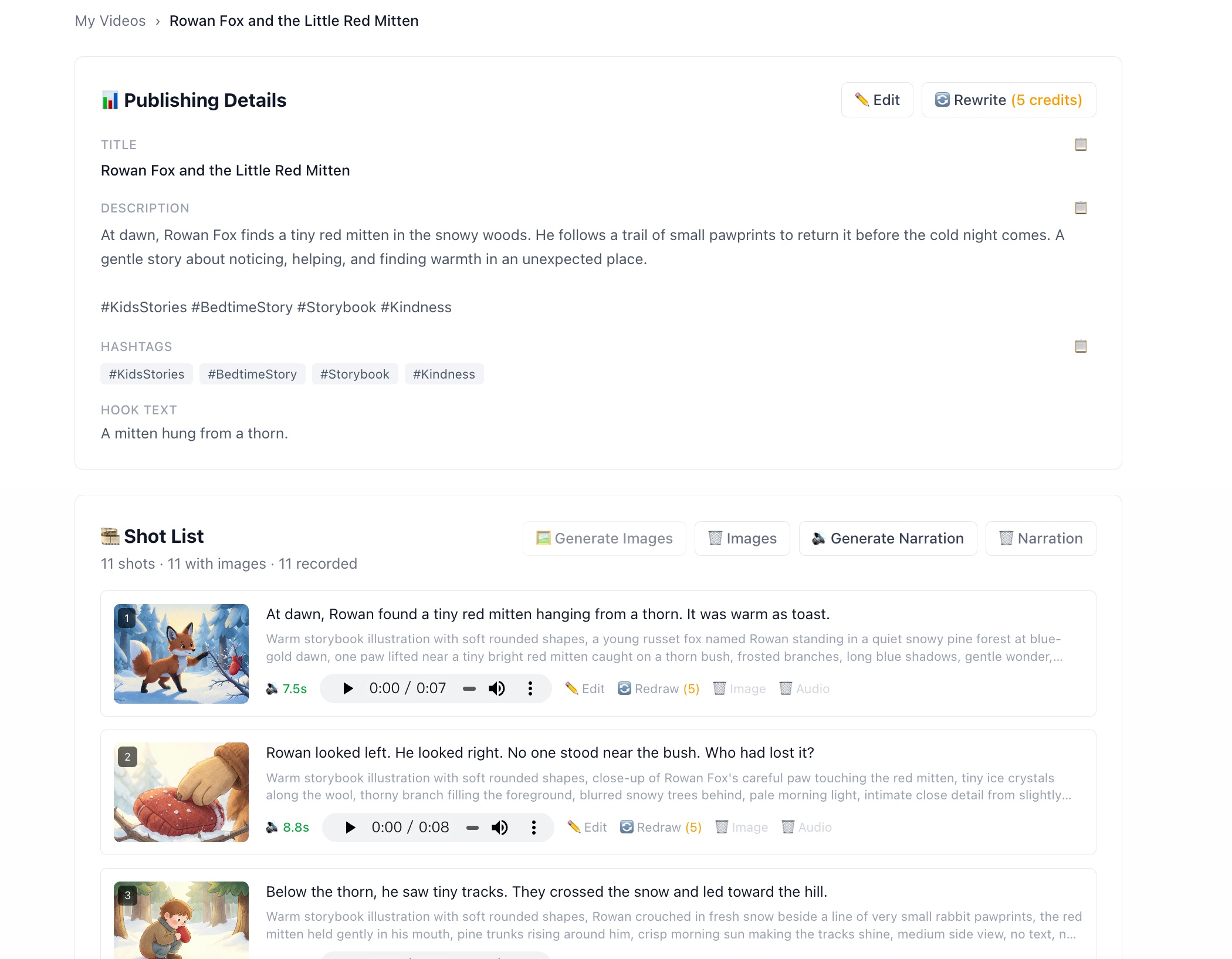
Narration is recorded from the shot list, one take per shot.
Pick a language and preview voices
Use the language dropdown to filter voices by language. There are voices in English, Simplified Chinese, Traditional Chinese, Japanese, Korean, French, German, Spanish, and Italian.
Each voice has a play button so you can hear a sample before selecting it. Pay attention to accent and tone — some voices sound more formal (better for educational or documentary content), others sound more casual and energetic (better for entertainment or motivation).
Generate and review
Click "Generate Narration". Each shot is recorded as its own take, one after another, at 1 credit per shot. You watch each take land in its row rather than waiting on a single long job — and if one shot fails, it costs that shot, not the run.
Every row gets its own player, so you can listen to any line on its own. Each take also reports its real duration — that is what sets how long the shot holds the screen, and what the subtitles are timed from.
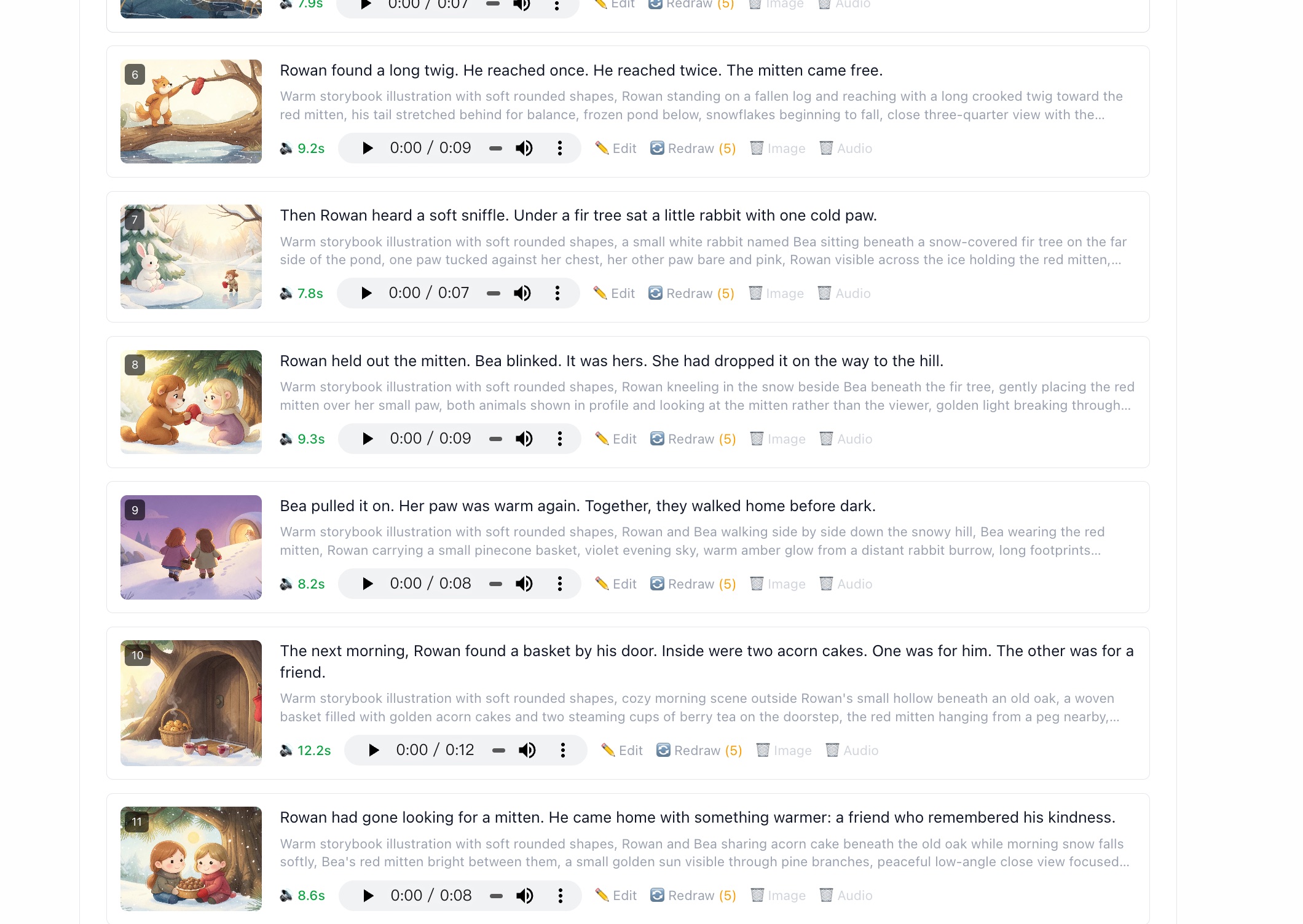
One take per shot, each with its own player and measured duration.
How subtitles work in the exported video
When you export the video, subtitles are burned into the video from the SRT file. You can configure:
- · Font size — how large the text appears on screen
- · Bottom offset — how far from the bottom edge the subtitles are positioned
- · Text color — white is standard, but any color works
- · Background opacity — a semi-transparent black bar behind the text improves readability
- · Word-by-word highlight — each word lights up as it's spoken, keeping viewers engaged (popular on TikTok-style videos)
Which voice should I choose?
| Content Type | Recommended Voice Style |
|---|---|
| Horror / Creepypasta | Deep, slower-paced male voice |
| History / Documentary | Neutral, clear male or female voice |
| Motivation / Coaching | Energetic, warm voice |
| Finance / Explainer | Clear, confident voice |
| Story / Narration | Expressive voice with natural pacing |
The best way to choose is to generate 2–3 voices for the same 30-second segment and listen back. What sounds right in your head may be different from what actually works when spoken.
Try AI voiceover for your next video
Start free — 50 credits at signup. No microphone or recording setup needed.
Generate My First Voiceover — Free