How to Create Eye-Catching B-Roll Images for YouTube Videos Using AI
Stock footage is expensive and generic. The same clip appears in thousands of videos. AI-generated images let you create custom visuals that match exactly what your script is saying — and they're unique to your video.
What is B-Roll and why does it matter?
B-Roll is the visual content that plays on screen while the narrator is speaking. In a traditional video production, it's the footage that supports the story — a cutaway to a street, an old photograph, a close-up of an object.
In a faceless YouTube video, B-Roll images are your entire visual layer. The viewer watches a sequence of images while hearing the voiceover. The quality, variety, and relevance of those images directly affect whether people keep watching.
Step-by-step: creating B-Roll images for your video
The shot list already decided the images
There is no separate step where you cut the script into image-sized pieces. When the planner wrote your story it wrote it as a shot list: each shot is one image plus the exact line spoken over it. So by the time you reach the shot list, every image you need is already described.
Each row carries an English visual prompt written for the image model. The narration can be in any of the nine supported languages — the prompt stays English, because that is what the image model was trained on and it visibly degrades otherwise.
Generate the images
Click "Generate Images" and the queue works through the shots in order, one request per shot, at 5 credits each. You watch each image land in its row instead of staring at a single spinner — and if one shot fails, it costs that shot rather than the whole run.
A shot that already has an image is skipped without charging, so re-running the queue after a failure only pays for what is actually missing.
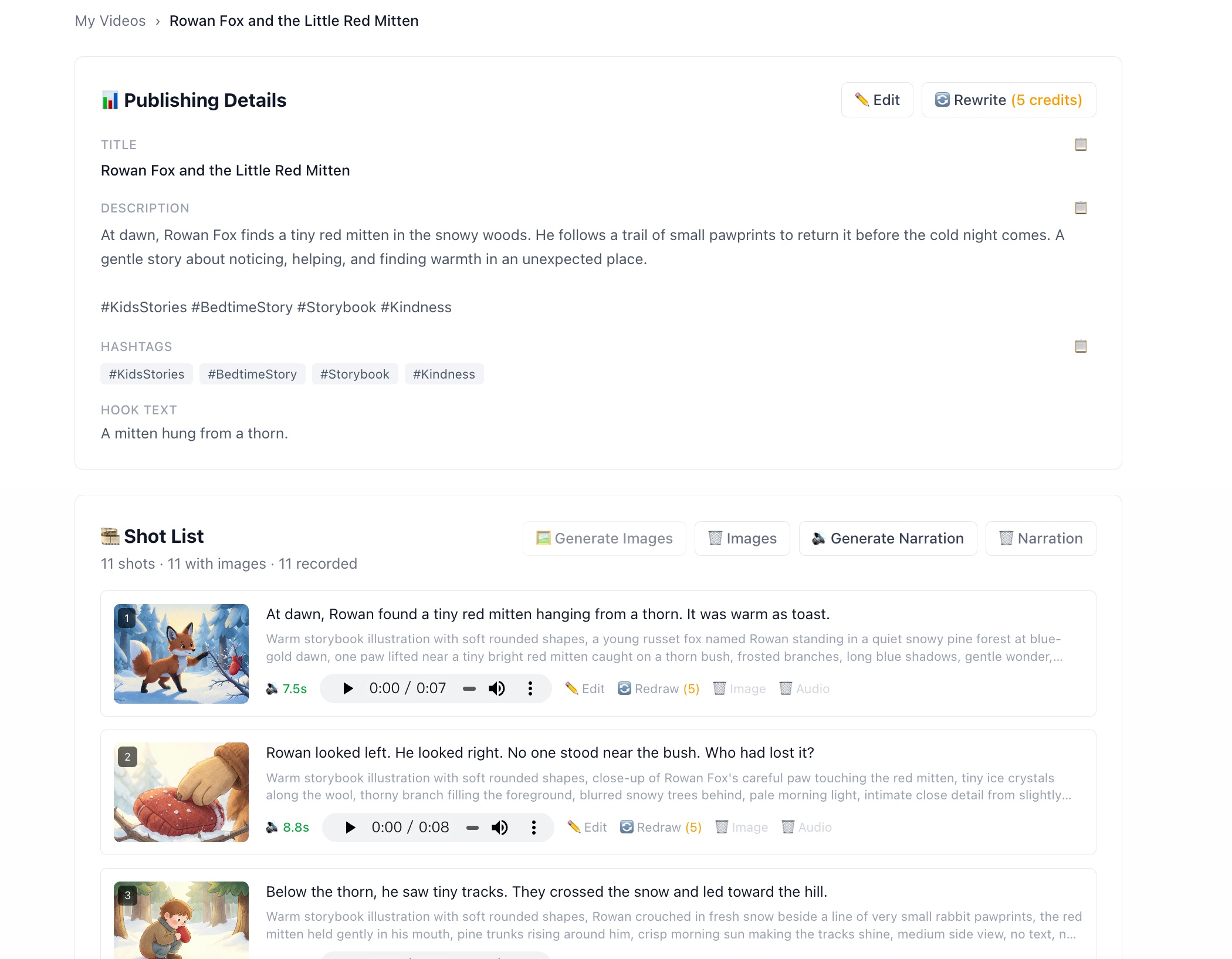
Every shot shows its image, the line spoken over it, and the prompt that drew it.
One seed keeps the cast consistent
A single seed is drawn once when the shot list is saved, and every shot in the project uses it — including any single shot you redraw later. That is what keeps the same character recognisable from shot to shot instead of dropping a stranger into the middle of the story.
Combined with the style you picked, which is held across every shot, this is what makes the sequence read as one video rather than a folder of unrelated pictures.
Review and redraw
Scroll the shot list and find anything that does not fit. For any single shot you can:
- › Redraw — regenerates just that shot with the same prompt and the project seed (5 credits)
- › Edit the prompt — rewrite the visual description, then redraw with something more specific
- › Delete the image — removes it and its stored file, free; the shot stays and can be redrawn later
Deleting is always free. You are only ever charged when an image is actually generated, and a generation that fails is refunded automatically.
Choosing the right image style for your niche
Your image style defines the visual identity of your channel. Pick one that fits your content — and be consistent. Here are the main options:
Cinematic
History, True Crime, Documentary
Cinematic documentary photography. Works for any niche that benefits from a grounded, credible look.
Anime
Horror, Fantasy, Action
Anime illustration with cel shading and expressive characters. Great for story-based content where emotion is key.
Watercolour
Travel, Culture, Human Interest
Loose watercolour with soft bleeding edges. Works for content that needs warmth and texture.
Storybook
Kids' stories, Bedtime, Fables
Warm storybook illustration with soft rounded shapes. The natural fit for gentle narrative content.
Minimal
Finance, Science, Education
Flat illustration with generous negative space. Ideal for explainer content that needs clarity over atmosphere.
Vintage Film
History, 70s–90s culture
Grainy 35mm film with faded, muted colour. Perfect for historical content or nostalgia-driven channels.
You can also type a custom style description instead of picking a preset — for example, "dark oil painting with dramatic shadows" or "children's book illustration".
How images are timed in the exported video
You don't need to set how long each image stays on screen. Each shot holds the screen for exactly as long as its own narration take, then hard-cuts to the next — the picture changes when the voice moves on.
This is not a total duration divided evenly. A shot whose line takes 12 seconds to read holds for 12 seconds; the one after it, at 7 seconds, holds for 7. Because the timings come from the real takes, the subtitles line up exactly rather than drifting off the voice.
While a shot is on screen it slowly pushes in and pans (the Ken Burns effect), so a still image still reads as motion.
Transitions between images are crossfades — the last frame of one image blends into the first frame of the next. This gives the video a smooth, professional feel without any manual editing.
Generate your first B-Roll images for free
50 free credits at signup. Start creating custom visuals for your next YouTube video today.
Start for Free