How to Make a Short Video About a Museum Object From Your Own Photos
For museums, galleries and collectors: turn photos of an object and its catalogue text into a narrated video that zooms into details, maps where it came from and plays on social media or a gallery screen.
Every object in a collection has a story, and most visitors never hear it. The label beside it has room for forty words. A short video can do what the label cannot: zoom into the inscription, point at the repair, show on a map where the object came from and on a timeline when, and tell the story in a voice, in the visitor’s own language.
This guide is for museums, galleries, heritage sites, libraries and collectors who want short videos about their objects without a production budget. You bring photos of the object and the text you already have, and an AI agent builds a narrated video around them.
What you need
- Photos of the object. One overall shot and a few close-ups of the details worth talking about: a mark, an inscription, a repair, a signature. Your photos go into the video as they are, and using them costs nothing.
- Your text. The catalogue entry, the label, a curator’s note, or a link to the object’s page on your public collection website.
- Where it will play. Social media, your website, a screen in the gallery, or all three. This decides the format.
How the photos are used
A photo in these videos is not a slide that sits on screen while a voice talks. The agent looks at each photo before it builds the video, and works with what is in it:
- The camera moves in on a detail as the narration mentions it.
- A ring draws around an inscription; a label points at a repair.
- A close-up photo appears beside the full view, so the viewer knows where the detail is.
- A map shows where the object was made or found, with a pin; a timeline shows its dates.
- Measurements become comparisons: how tall, how old, how heavy, against something familiar.
Step by step
- Upload the photos and paste your text. Attach the photos to your message or upload them, then paste the catalogue text or the link to the object page. Say which details matter most. A 60-second vertical video about this object for our Instagram. Photos attached: the full view, the maker’s mark, and the repaired handle. Catalogue text below. Zoom into the mark when it is mentioned, and end on the repair, which visitors always ask about.
- Check the outline. The agent proposes the order of the video, a few voices and looks, and whether any scene would gain from an AI picture for context. Make sure the detail you want to end on is in the right place.
- Check the script against your catalogue. Dates, materials, attributions and measurements are all in the narration you approve. Ask for “attributed to” or “probably” wherever your records say so.
- Watch it, fix by asking, download. “Hold on the mark for longer.” “The label should say ‘about 1750’.” Then export the MP4 from the preview.
Formats for each place it will play
| Where | Format | Tips |
|---|---|---|
| Instagram, TikTok, Reels, Shorts | Vertical 9:16, 30 to 60 seconds | Open on the most surprising detail, not the museum’s name. |
| Your website or YouTube | Landscape 16:9, 1 to 3 minutes | Room for the map, the timeline and more of the story. |
| A screen in the gallery | Landscape 16:9 or square, no voice | Choose “No voiceover” so it can be read in a busy room; let it loop. |
| A feed post | Square 1:1 or 4:5 | Fits the feed without cropping the object. |
Taking photos that work in video
- Shoot at the highest resolution you can. The video zooms into details, and a zoom needs pixels.
- Use a plain, even background and soft light, so the object reads clearly when it is small on a phone.
- Take a separate close-up of every detail you will talk about, rather than relying on cropping the overall shot.
- Check you have the right to use the photos, especially for loans and objects photographed by others.
Videos for visitors in other languages
The narration and the on-screen text can be in English, Simplified or Traditional Chinese, Japanese, Korean, French, German, Spanish or Italian. To offer one object in several languages, make the first version, download it, then ask for a version in the next language: the agent translates the narration and the text and shows you the new script first. The new version replaces the previous one in that conversation, which is why you download each one as you go.
Examples of the kind of story to tell
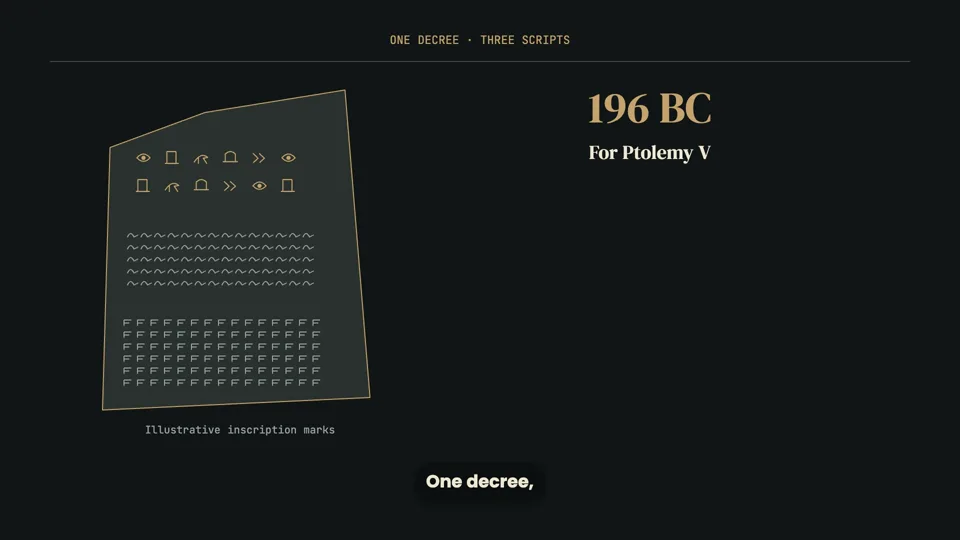
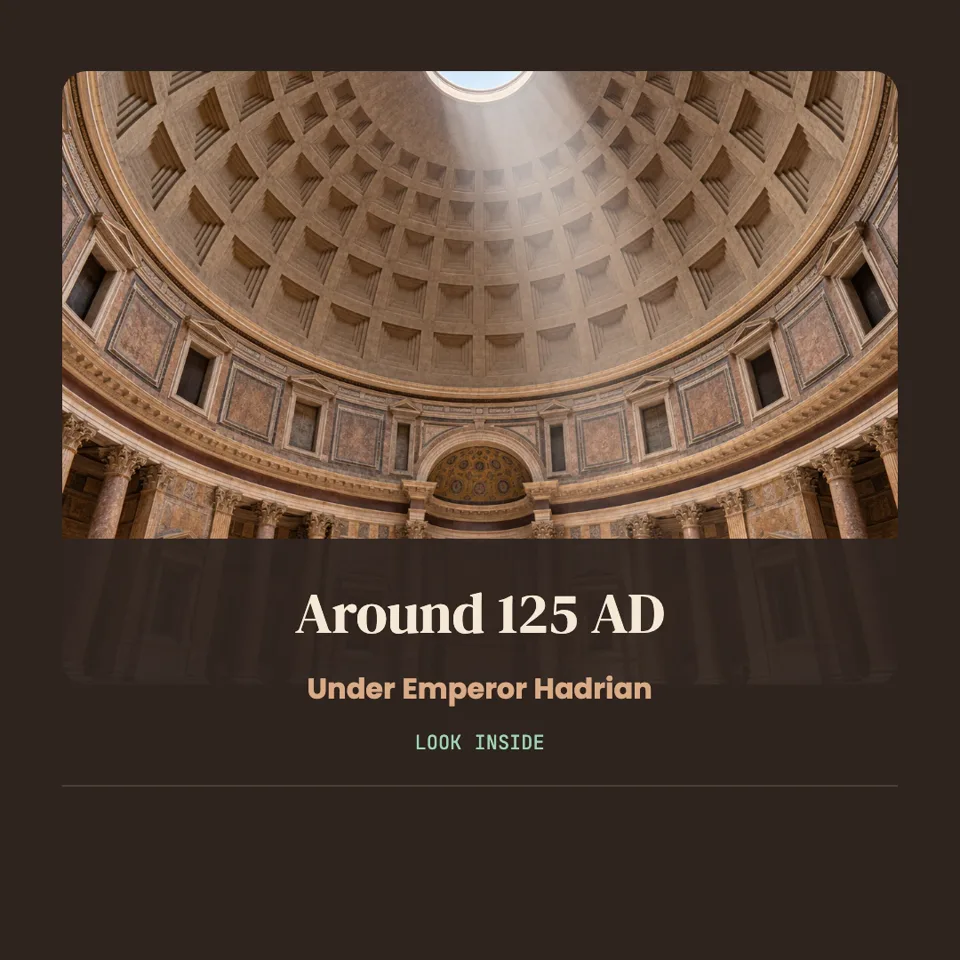
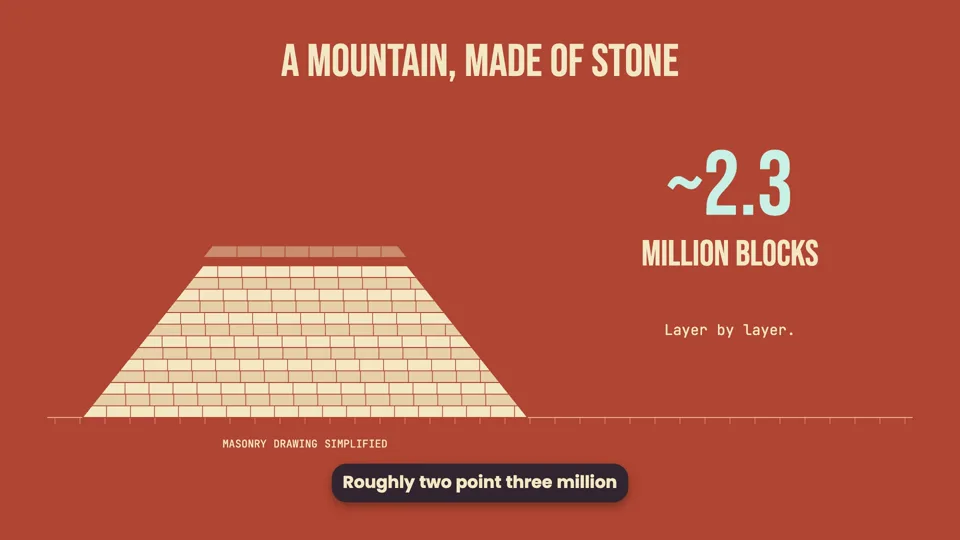
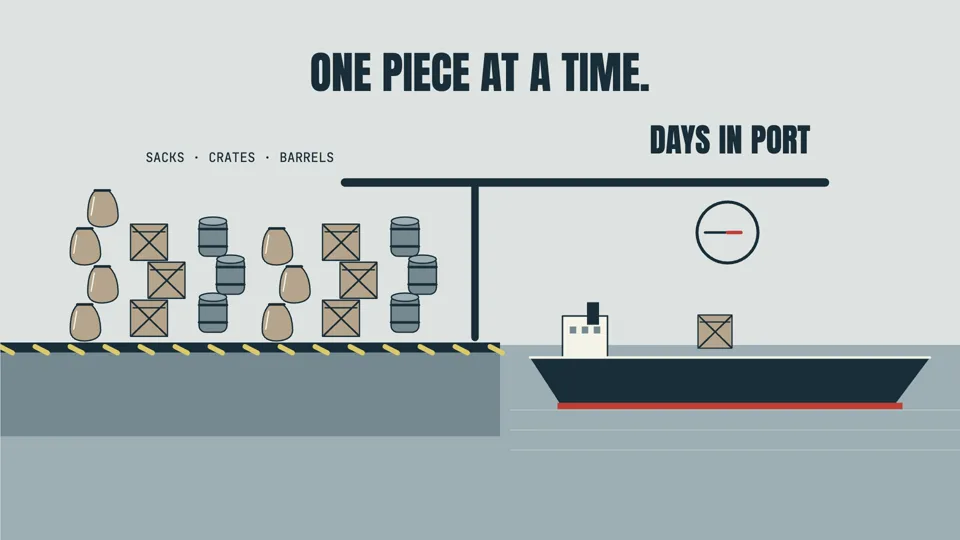
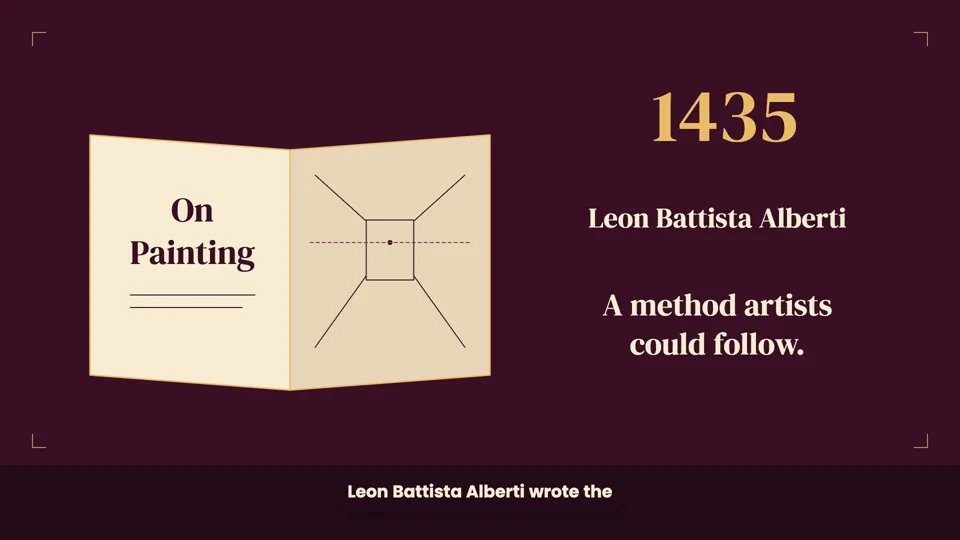
These videos tell the story of one object or structure each. Open any to see how a single thing can carry a whole video:
Ideas for a collection series
- Object of the week: one item, one minute, every week.
- Look closer: a detail visitors walk past, explained.
- Behind the repair: what conservation found.
- Then and now: the object beside what replaced it.
- Ask the curator: one question visitors ask, answered with the object.
Questions
Can the video play on a loop in the gallery?
Yes. The export is an ordinary MP4, so any screen or media player that loops a video can loop it.
Can I add our logo?
Yes. Upload the logo and say where it should appear, for example in a corner at the end.
Can I add music?
Yes, if you upload a track you have the rights to. It plays under the narration and quietens automatically while the voice speaks.