
How to Turn a YouTube Video into a Blog Post in 5 Minutes
Most creators make a video and then move on to the next one. That is leaving a lot on the table. Every video you produce already has everything you need for a blog post, a newsletter issue, and a LinkedIn article. Here is the workflow that creates all of them automatically — at the same time you make the video.
Why repurposing matters for long-term growth
YouTube is a search engine — but it's not the only one. A lot of people who would love your content will never find it on YouTube because they search on Google, browse Pinterest, or read newsletters instead. Repurposing your video content into other formats puts you in front of those people without creating anything new.
The key insight: you already did the hard work when you wrote the script. The script is the content. The video is one way to deliver it. A blog post is another. A LinkedIn article is another. They all start from the same source.
The Export Article feature — what it does
Once your script and B-Roll images are ready, the Export Article tab assembles everything into a formatted article automatically. Your script text and the matching images are paired together — no copy-pasting, no manual layout.
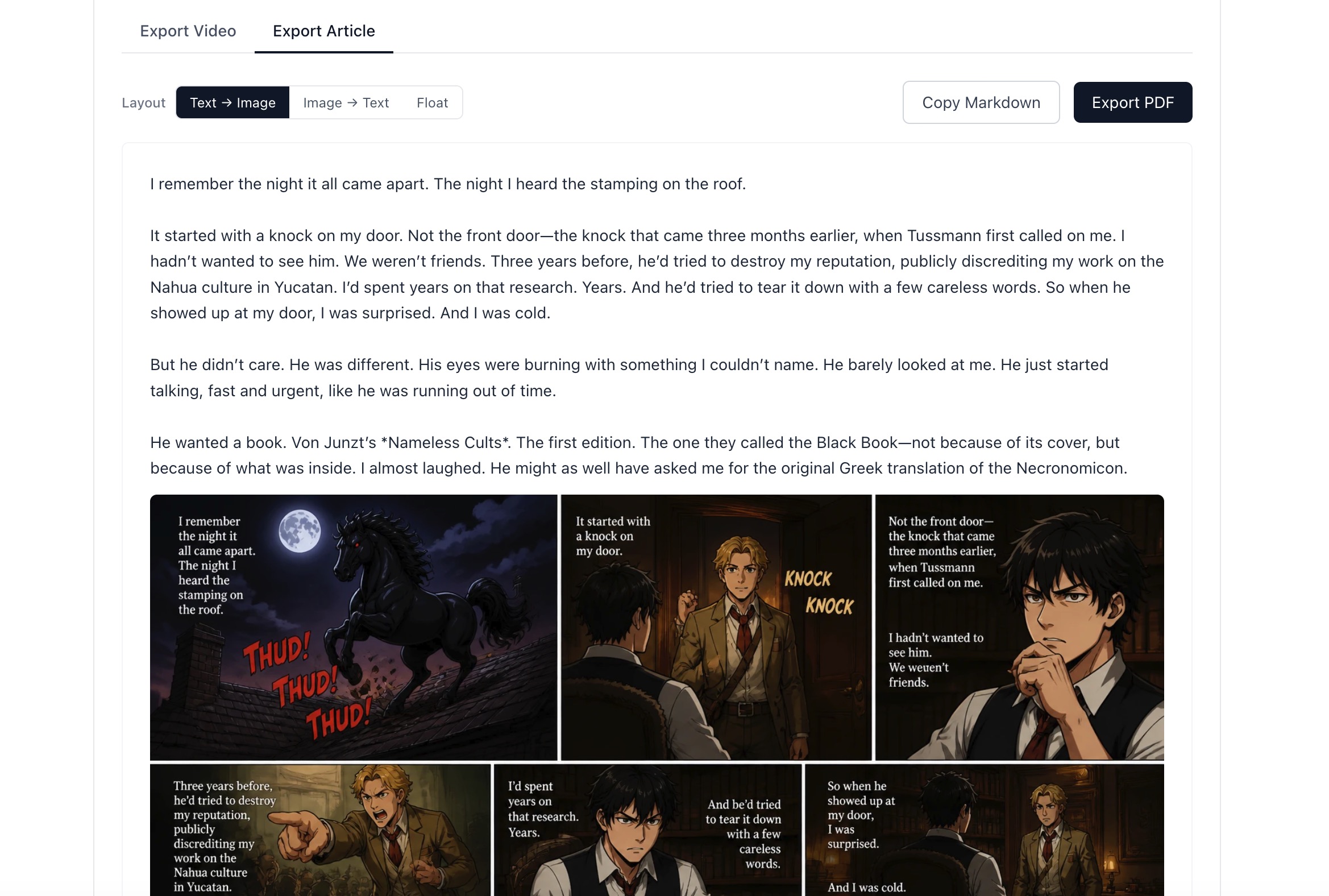
The script text and B-Roll images are automatically paired and laid out as a readable article.
Text → Image
Script paragraph first, then the matching image below. Best for educational and explainer content where the reader benefits from reading before seeing.
Image → Text
Image first, then the paragraph below. Best for visual-first content like travel, food, or aesthetic topics where the image draws the reader in.
Float
Images float left or right beside the text, alternating. Best for long-form articles where full-width images would break the reading flow.
How to use each export format
Copy Markdown For your blog, Medium, or newsletter
Click Copy Markdown to copy the entire article — text and image links — in Markdown format. Paste it directly into:
- › Your own blog (WordPress, Ghost, Notion Sites, any Markdown-based CMS)
- › Medium.com — paste into the editor and the images load automatically
- › Substack or Beehiiv newsletters
- › LinkedIn articles (convert Markdown to rich text first with a free converter)
- › Dev.to or Hashnode for tech content
Export PDF For lead magnets and downloadable resources
Click Export PDF to open a print-ready version of the article in a new tab. Your browser prints it to PDF. Use the PDF as:
- › A free lead magnet ("Download the full guide as PDF") to grow an email list
- › A shareable resource you pin to your YouTube channel description
- › A client deliverable if you create educational content for businesses
- › A Pinterest pin (PDF preview as an image is highly pinnable)
The B-Roll images also work as standalone visuals
Your B-Roll images are stored as individual files — you can use them for more than just the video and article.
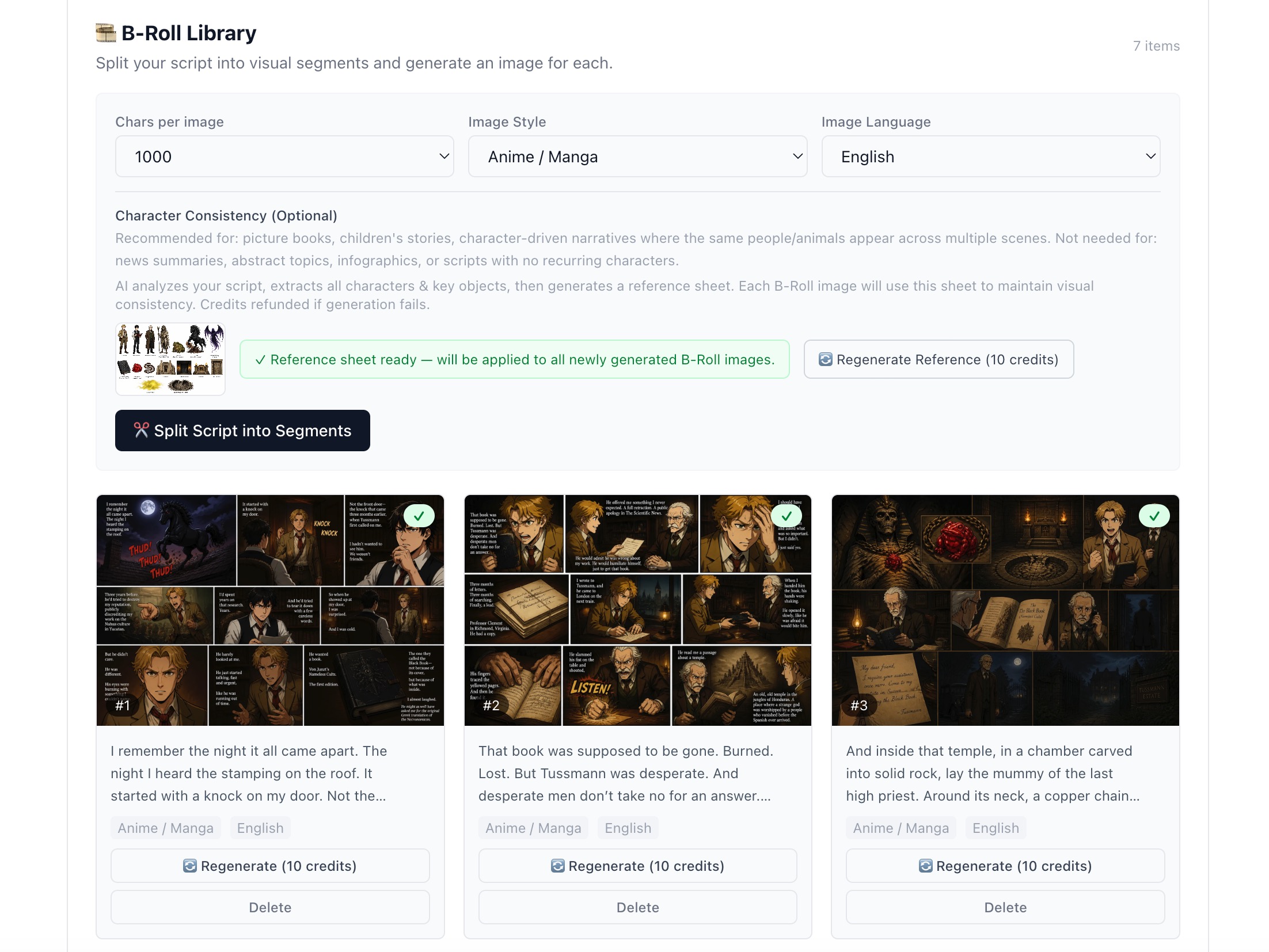
Each B-Roll image is a standalone asset — use them across platforms, not just in the video.
The full repurposing checklist
- ☐ Export MP4 → upload to YouTube with AI-generated title + description
- ☐ Copy Markdown → publish on your blog or Medium
- ☐ Export PDF → add to YouTube description as free download
- ☐ Individual B-Roll images → schedule as Pinterest pins
- ☐ Hook text from Meta section → use as short-form video caption
- ☐ AI-generated tags → add to YouTube + blog post categories
Make one video. Get five pieces of content.
Video, article, PDF, Markdown, and visuals — all from a single session. 50 free credits to start.
Start for Free