From Script to Published YouTube Video in Under 30 Minutes A Complete AI Workflow
Most creators waste hours bouncing between a writing app, a recording setup, a stock photo site, and a video editor. This workflow eliminates all of that. Here's how to go from zero to a finished video using only AI — in one session.
The problem with the traditional video workflow
Here's what producing a single YouTube video used to require:
That's 5–7 hours of work for a single video. The AI workflow below cuts that to under 30 minutes — and produces a result that looks just as good.
The full AI video workflow — step by step
Plan the video (2 minutes)
Type your topic, pick a style and an aspect ratio, choose the narration language and click "Plan Video". One AI pass writes the whole plan for 5 credits.
There is no length setting. The planner decides how many shots the topic needs, and each shot lasts exactly as long as its own narration take — so the video runs as long as the story takes to tell.
Check the publishing details (1 minute)
The same pass that wrote the shot list also wrote what you publish with: a title, a description ending in hashtags, the hashtag list itself, and a hook line. A title chosen while writing the story fits it better than one extracted afterwards.
Edit any of it inline, or click "Rewrite" to have the metadata written again from the existing shot list for 5 credits — the story itself is left untouched.
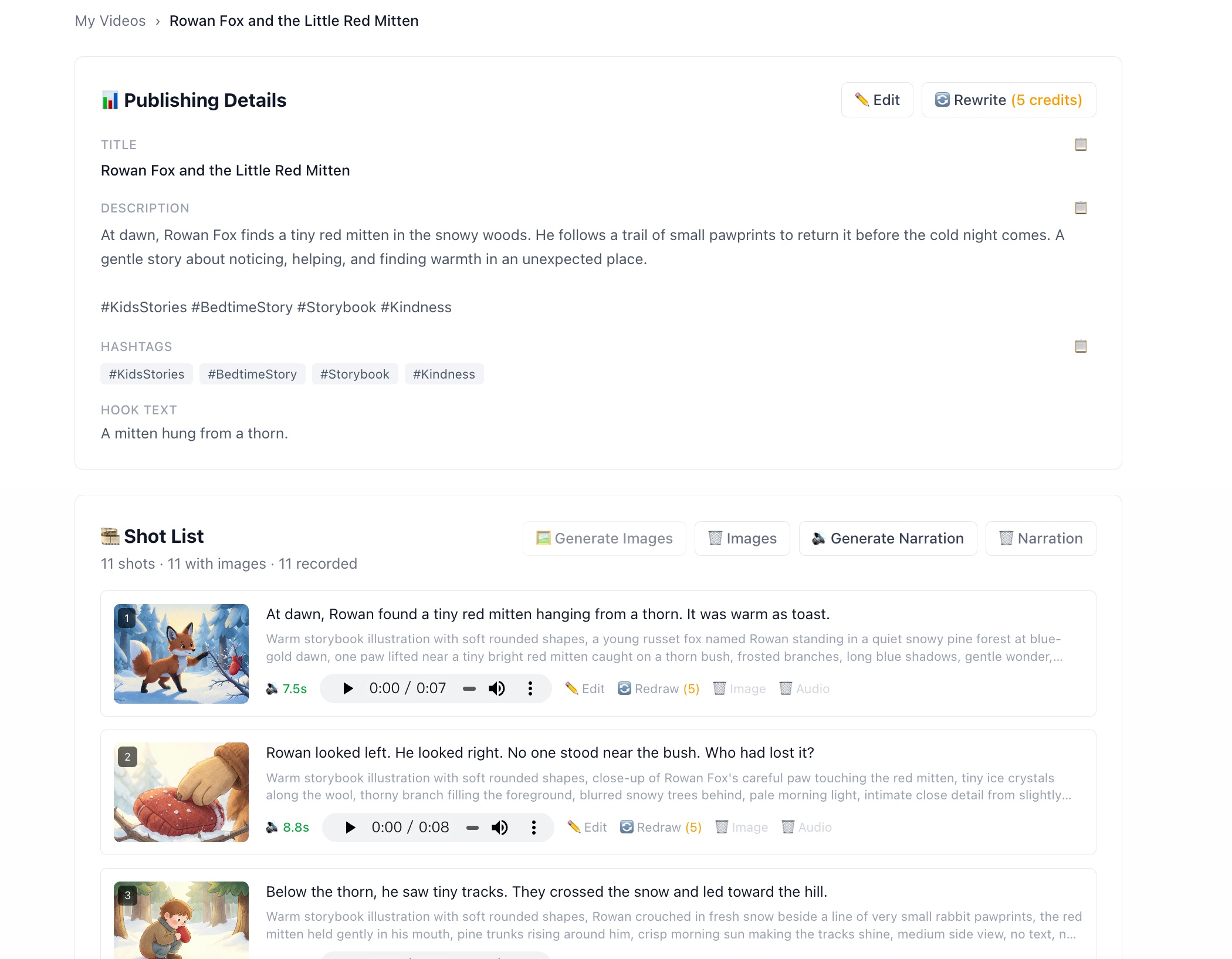
Title, description, hashtags and hook are planned alongside the story, not after it.
Generate the images (5–10 minutes)
The shot list already describes every image, so there is nothing to set up. Click "Generate Images" and the queue works through the shots in order, one request each, at 5 credits per shot.
One seed is drawn for the whole project and reused by every shot, so the same character stays recognisable from shot to shot. Any single shot can be redrawn on its own afterwards.
Record the narration (2 minutes)
Pick a voice — you can preview each one before committing — and click "Generate Narration". Each shot is recorded as its own take, one after another, at 1 credit per shot.
Recording is a separate step from exporting on purpose: burying dozens of text-to-speech calls inside an export button puts a slow, failure-prone stage exactly where you are not expecting it.
Every take reports its real duration, and those durations become the video timeline. The subtitles are cut from the same timings, so they cannot drift out of sync.
Export your video (2–3 minutes)
Open the Export tab and set your subtitle style — font, size, colour, plate, and whether each word lights up as it is spoken. Play the preview to check it in motion, then click export. Your browser assembles the MP4 from the images and takes and downloads it.
The aspect ratio is fixed to the one your shots were drawn at, so there is nothing to choose here — exporting at a different ratio would only letterbox them. Square projects are the exception and can be cropped to landscape or portrait.
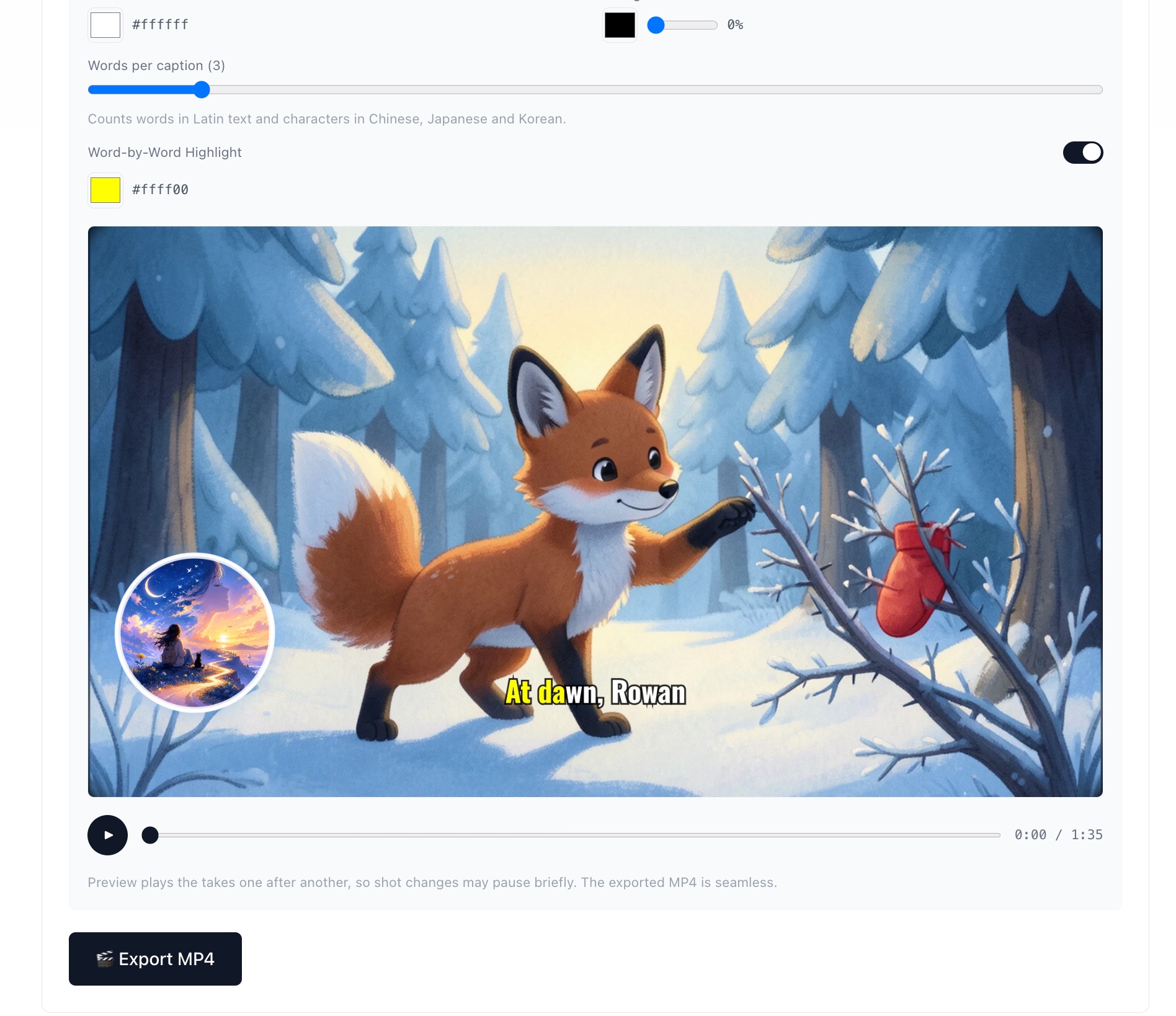
Play the preview to check the subtitles and timing before spending time on an encode.
Your quick-reference checklist
- ☐ Describe a topic, pick a style and ratio → Plan Video
- ☐ Review the shot list; edit any narration line or image prompt
- ☐ Check the publishing details (title, description, hashtags, hook)
- ☐ Generate the images → redraw any that miss
- ☐ Pick a voice and record the narration
- ☐ Set subtitle style, play the preview, export MP4
- ☐ Upload to YouTube with the AI-generated title and description
Bonus: Export the same content as a blog post too
Once your shots have images, you can also export the whole project as a formatted article. The "Export Article" tab lays the narration out alongside each shot image, and you can copy it as Markdown or export a PDF.
This means one session can produce both a YouTube video and a blog post at the same time — two pieces of content from the same workflow.
Try the workflow yourself — free
50 free credits at signup. Enough to produce your first complete video from scratch.
Start for Free