How to Turn Lesson Notes or an Article Into a Narrated Slide Video
Paste your notes, upload a text file or share a link, and get narrated slides with one idea and one picture each. How to size the material, plan the pictures and keep the narration faithful to your source.
You already have the material: lesson notes, a training document, a blog post, a chapter summary. What you do not have is the time to turn it into slides, find a picture for each one, record yourself reading it, and cut it all together. That is four tools and an afternoon.
This guide shows how to hand that material to an AI agent and get back a narrated slide video: one idea per slide, a picture made for each, a voice reading it, every slide animated as it is explained. You stay in control of the parts that matter, which are what it says and what the pictures show.
When a slide video is the right format
A slide video suits material that is a sequence of points, each easier to remember with a picture: the stages of a process, the lessons of a chapter, the rules of a policy, the steps of onboarding. If your material is mostly numbers, comparisons or a process that needs to be seen moving, a motion graphics explainer with charts and diagrams fits better. If you are not sure, choose Auto and the agent suggests one.
| Your material | Best format |
|---|---|
| A list of key points, a story, a set of tips | Slide video, one picture per point |
| Data, results, comparisons | Motion graphics, with charts and tables |
| A mechanism or a process that moves | Motion graphics, with animated diagrams |
Three ways to give it your material
- Paste it. Copy your notes into the message. This works for anything you can copy as text, including a PDF or a slide deck.
- Upload a text file. Upload a .txt, .md or .csv file and say in your message that the video should be built from it.
- Share a link. Put the address of a public page in your message, such as an article, a blog post or a documentation page, and the agent reads it before planning. Pages behind a sign-in cannot be read; for a long page, only the first part is read, so paste the section you need instead.
Step by step
- Choose “Slide video” in the composer. Above the message box of a new video, open the mode menu and pick Slide video. It tells the agent to plan slides around pictures and a voiceover.
- Send your material with one line of instructions. Say who it is for, roughly how long, and where it will be watched. Add anything about tone: “friendly”, “formal for staff training”.
- Review the slide plan. The agent replies with an outline of the slides, which ones get an AI picture and what each shows, the number of pictures and what they cost, a few voices, and a few looks. Remove slides, merge two, or change what a picture should show before anything is made.
- Approve the narration slide by slide. Next you see the script, written slide by slide. Check that it says what your notes say. Nothing is recorded until you approve it.
- Watch it in the preview. The pictures are generated, the narration is recorded, and the slides are built and animated in time with the voice, with subtitles.
- Fix by asking, then download. “The picture on slide 4 should show a classroom, not an office.” “Slide 6 is too long.” Then export the MP4 from the preview.
How long your video will be
Narration runs at about 140 English words a minute. That gives you a quick way to size your material before you start:
| Words of narration | Video length | Slides, roughly |
|---|---|---|
| About 140 | 1 minute | 5 to 7 |
| About 280 | 2 minutes | 8 to 12 |
| About 420 | 3 minutes, the longest one video can be | 12 to 18 |
Notes are usually longer than the narration they become. If your document is several pages, either ask for the key points only, or split it into parts and make one video per part, each in its own conversation.
Keeping the narration faithful to your source
For training, teaching or anything you will be held to, the narration should say what your material says and nothing more. Three things help:
- Say it in the request: “Stay close to my notes. Do not add facts, examples or numbers that are not in them.”
- Ask for your own terms to be kept, such as the product names, the policy names and the words your class uses.
- Read the script against your notes before approving it. It is shown slide by slide, so the comparison is quick.
Pictures: AI, your own, or both
The plan proposes AI pictures for most slides, because a picture per idea is what makes a slide video memorable. You can change that in the plan:
- Use your own. Upload photos, screenshots or diagrams and say which slide each belongs on. Your own pictures cost nothing to use.
- Use fewer AI pictures. Ask for pictures on the key slides only and text-led slides for the rest.
- Keep a consistent style. The agent uses one style description for all the pictures of a video; if you have a preference (“flat illustration”, “soft watercolour”, “realistic photos”), say so.
Where slide videos are useful
- Flipped classroom: students watch the summary before the lesson and use class time to practise.
- Revision: one short video per topic, to rewatch before a test.
- Staff training and onboarding: a policy or a process explained the same way to every new person.
- Course modules: a recap at the end of each module.
- Content reuse: a blog post or a newsletter turned into a video for social media.
- Book and chapter summaries: the key ideas of a chapter, one per slide.
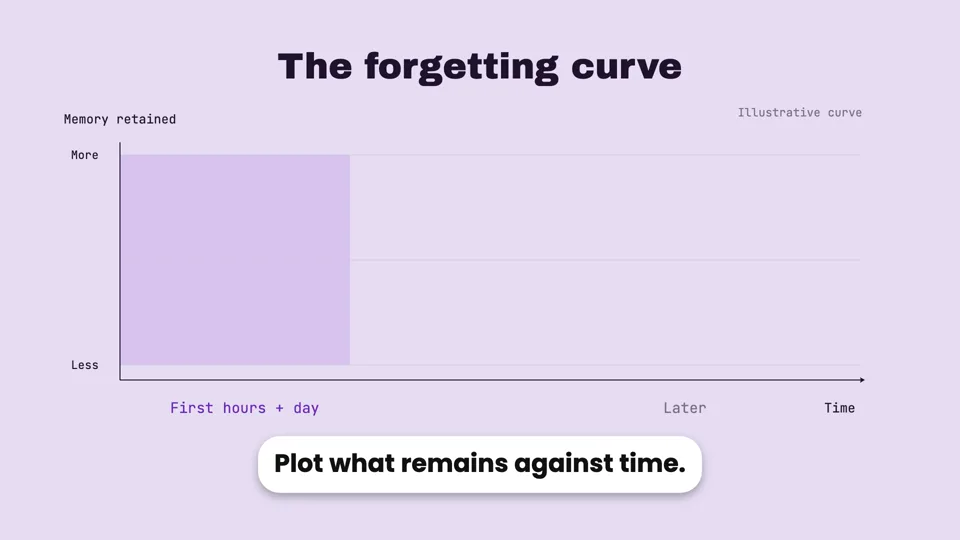
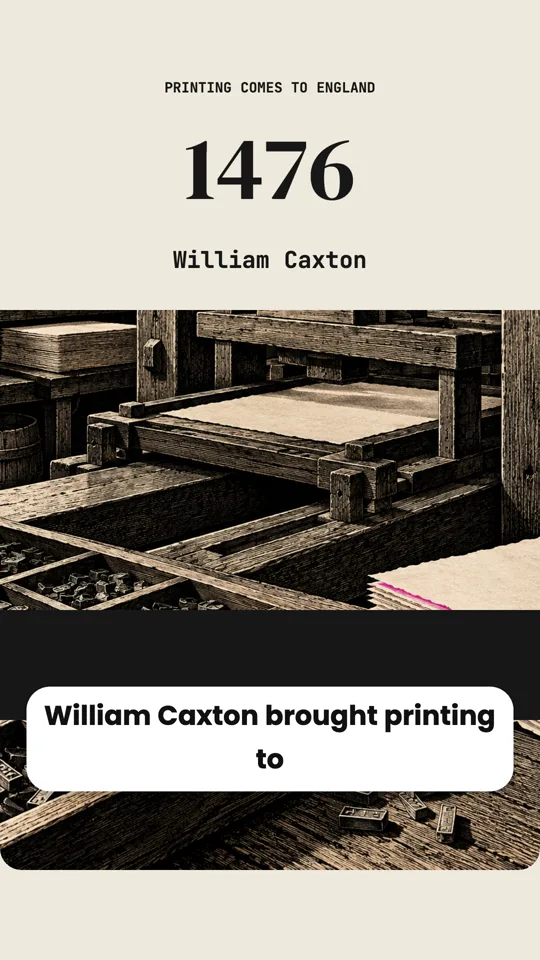
Study topics make good material too. A video like this one on the forgetting curve is the kind of thing students rewatch:
Questions
Can I upload a PDF or a PowerPoint file?
You can upload them, but the agent reads text files, not PDFs or slide decks. Copy the text into your message instead, or save it as a .txt or .md file.
Can it make the video in another language than my notes?
Yes. Write your notes in one language and ask for the video in another; the script you approve is already translated. The narration can be in English, Simplified or Traditional Chinese, Japanese, Korean, French, German, Spanish or Italian.
Can I change a slide after the video is made?
Yes. Say which slide and what to change. Only that slide’s narration is re-recorded, and a picture is generated again only if you ask for a new one.